
Saving and loading your progress
As you work through the exercises and guides, this site automatically keeps track of which pages you’ve completed — you’ll see a ✓ checkmark appear next to them in the sidebar, and a progress bar at the top showing how far through the course you are.
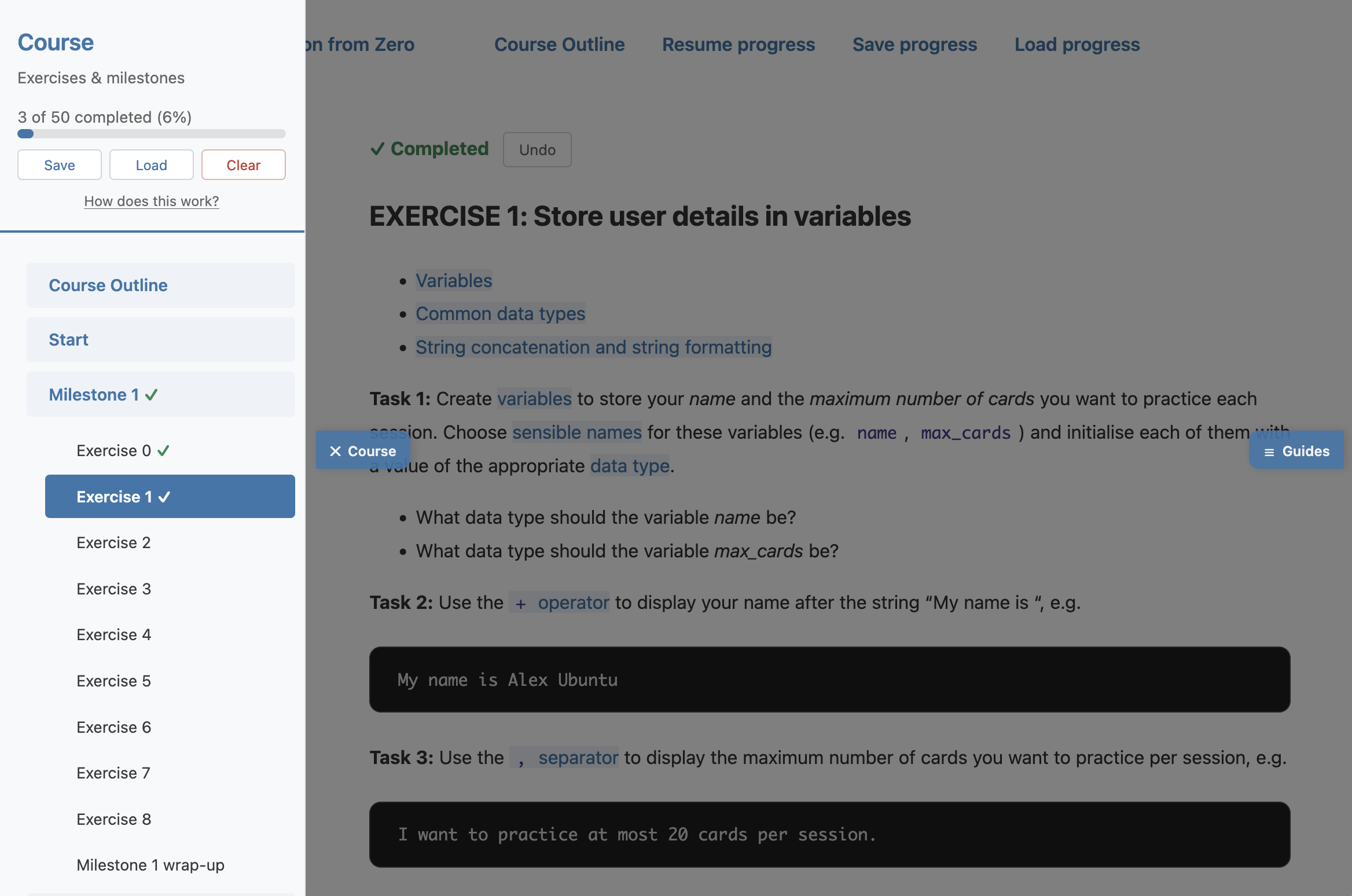
📖 This progress is stored only in this browser, on this computer — nothing is sent to a server, and nobody else can see it. That’s great for privacy, but it also means your progress can “get stuck” on one browser unless you save a backup of it. This page explains how to do that.
We deliberately built progress tracking this way, with no accounts and no email sign-up, so you don’t have to hand over any personal details just to track your way through a free course. The trade-off is that you need to manually save/load a file if you are sharing a computer or switching between browsers, a first lesson in the trade-offs between solutions!
Where to find the controls
The same three buttons — Save progress, Load progress, and (once you’ve completed something) Resume progress — appear in two places on every page: the top menu bar, and the course sidebar (where there’s also a Clear button).

Saving your progress to a file
Use this whenever you’re about to:
- switch to a different computer or browser
- clear your browser’s history/data
- let someone else use the same computer (see below)
- just want a backup, in case
Steps:
1) Click Save progress (top menu bar or course sidebar).
2) Your browser will download a file named pythonfromzero-progress.json. Depending on your browser, this usually lands in your Downloads folder.

3) A message confirms it saved, and reminds you to use Load on the other computer/browser.
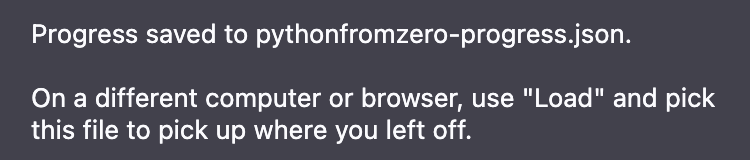
📖 This file is just plain text (JSON) listing which pages you’ve completed — you can open it in any text editor if you’re curious, but you shouldn’t need to edit it by hand.
Keep this file somewhere you’ll find it again — e.g. rename it, move it into your course project folder, or attach it to yourself in an email. If you ever lose it, your progress in this browser is still safe; you’d just need to export a fresh copy from here next time.
Loading your progress on another computer or browser
1) Open this website in the new browser (you’ll start with a “Get Started” button instead of “Resume progress”, since this browser doesn’t know about your progress yet).
2) Click Load progress.
3) Your operating system’s file picker will open. Find and select the pythonfromzero-progress.json file you saved earlier.

4) A message confirms your progress was restored, and the page will then jump you straight to wherever you left off.
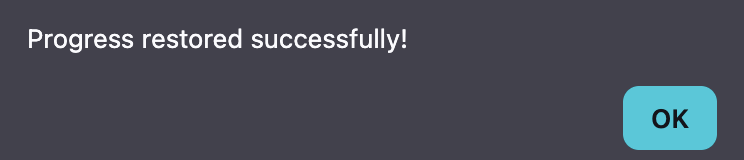
If you pick a file that isn’t a valid progress file (e.g. the wrong file, or a corrupted download), you’ll see a warning instead and nothing will change — it’s safe to try again.
Starting over: clearing your progress
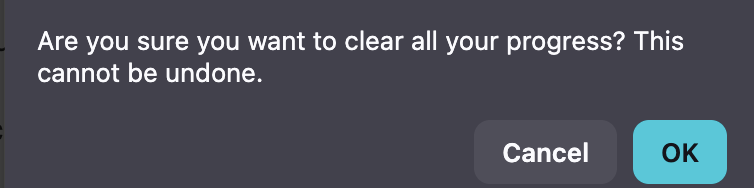
If you want to reset everything and start the course from scratch, click Clear in the course sidebar. You’ll be asked to confirm first, since this can’t be undone — if you might want your current progress back later, use Save progress first.
Two people sharing one computer
Since progress is tied to the browser, not to you personally, two people sharing the same computer and browser would normally see each other’s checkmarks. To keep your progress separate:
- Each person clicks Save progress at the end of their session, keeping their own
.jsonfile (rename them so you don’t mix them up, e.g.alex-progress.jsonandsam-progress.json). - At the start of the next session, click Clear, then Load progress and pick your own file.
Troubleshooting
I saved a file but “Load progress” says it’s not valid:
- Make sure you selected the actual
pythonfromzero-progress.jsonfile, not something else in your Downloads folder. - If the file was edited or corrupted, export a fresh one from a browser that still has your progress.
Nothing happens when I click Save:
- Some browsers block automatic downloads from a site the first time — check for a small notification bar near your address bar and allow downloads.
I cleared my browser history/cache and lost my progress:
- If you exported a file before clearing, use Load progress to bring it back.
- If not, unfortunately that progress is gone — this is exactly why it’s worth exporting a backup occasionally, especially before doing anything that clears browsing data.